

Cross-Device Sign-In
Overview
Topics: consumer, passkeys, WebAuthn, cross-device, cross-platform, cross-OS
Customer journey: Awareness > Consideration > Enrollment > Management > Authentication
Created: 24 May 2024
Cross-device sign-in allows people to sign in on a device that does not have a passkey (laptop/desktop) using a second device that does (mobile device).
Add cross-device sign-in
- Reduce the need for people to manually enter a password or go through additional authentication steps on the laptop/desktop.
- Remove the password field and support autofill.
- Enable people to switch between devices without the need to re-authenticate or reconfigure their passkey.
- Support graceful fallback to other sign-in methods to handle situations when passkey synchronization or sign in fails across devices.
- Support a separation between personal authentication devices (smartphones) and the device being accessed (public/shared laptop).
Our research examined participant experiences and satisfaction with using a passkey to sign in across different devices (mobile devices and laptop/desktop) to Kayak as the example site. In 2024, we conducted two rounds of iterative user testing with both iPhone and Android users to understand their expectations, concerns, and questions. In 2025, we conducted a third round to build on earlier findings and validate updates to the experience. These insights helped shape our final design recommendations.
Based on findings across multiple rounds of research, the recommendation for cross-device sign-in is to support flexibility while minimizing friction. People benefit from having multiple options, but they also need clear cues and explanations to feel confident throughout the experience.
- Prioritize seamless, convenient sign-in methods: Most participants found passkey sync to be faster and more intuitive than QR-based sign-in. When a synced passkey is available, it should be prioritized to minimize effort and avoid extra steps.
- Offer alternate sign-in options: In addition to synced passkeys, you should support QR code sign-in as a fallback, especially for public or shared devices and accounts where syncing is not available. Participants saw this method as a flexible and secure alternative, though some needed more clarity on what would happen after scanning. Also include non-passkey fallback options that align with your organization’s security policies, for example, recovery email, one-time codes, or Try another way options. These fallbacks are critical when neither synced nor QR-based passkeys are available or successful.
- Communicate the benefits and trade-offs clearly: The interface to initiate cross-device sign-in is controlled by the browser and operating system, not the organization's website. Because of this, there is no way for website owners to know if someone wants to use, or is going to use, cross-device sign-in. Because most scenarios will not use cross-device sign-in, and because cross-device sign-in is difficult to describe, we recommend not trying to educate people on the sign-in page of your service. Instead, create a help resource for cross-device sign-in alongside your other passkey-related help materials. Use this resource to educate interested users on the security advantages of the passkey-based approach and any potential inconveniences. This empowers users to choose sign-in methods that best fit their preferences and usage patterns across devices.
The cross-device sign-in experience can accommodate the diverse needs and preferences of users by providing a flexible, multi-option approach that prioritizes convenience while highlighting the security benefits.
Outcomes
- Streamline the overall user experience by seamlessly and consistently authenticating people across different devices using the same passkey.
- Reduce the need to manage and maintain separate passkeys for different devices, making the authentication process more convenient and secure.
- Reduce the need to remember and enter complex passwords and one-time passwords by improving usability and reducing password fatigue.
- Leverage the inherent phishing resistance of passkeys across different devices
- Maintain a consistent and robust security posture and improve backup and recovery.
- Encourage broader passkey adoption and familiarization, as people are more inclined to use more convenient and consistent authentication as a primary method
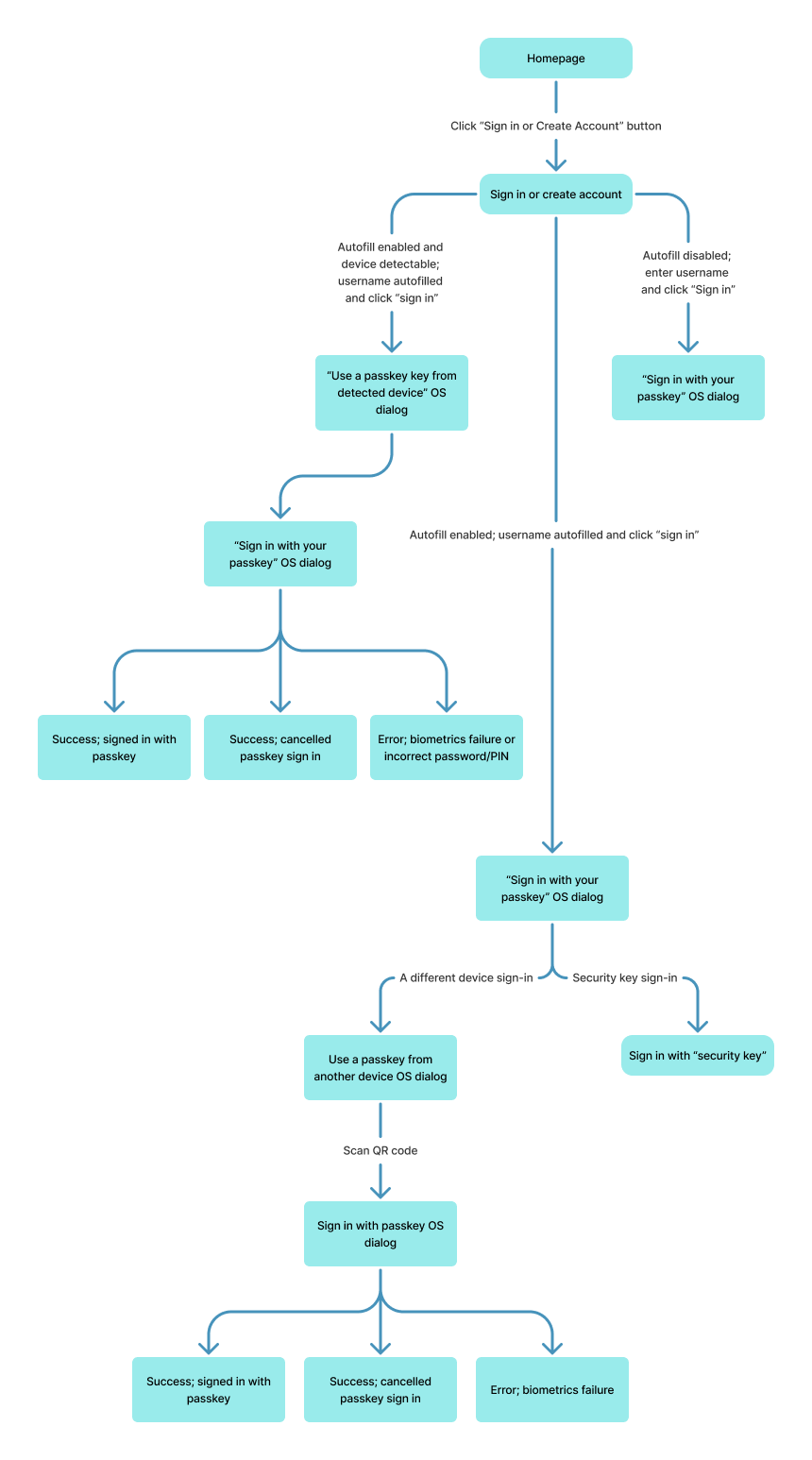
Flow: schematic (QR)
Flow steps
- The user initiates the Sign-in experience on their laptop or desktop.
The user navigates to the service provider’s website and initiates the sign-in experience on the website-based homepage using a call to action to sign in or create an account. - The system displays the Sign in or create account page and autofills the username.
After a user selects the Sign in or create account button, the system displays the Sign in or create account page that you instrument to focus the username field.- If autofill is enabled, the system shows a dropdown of email addresses associated with saved passkeys and the option to continue with a different passkey. The user selects the option to continue with a different passkey which triggers the OS dialogue to sign in with a passkey.
- If autofill is disabled, the user enters the username and selects Sign in. The system recognizes the email and triggers the OS dialogue to sign in with a passkey.
- If autofill is enabled, the user enters the username and selects Sign in. The system recognizes the email and triggers the OS dialogue to sign in with a passkey.
- The OS/browser displays the Sign in with your passkey dialogue.
After a user selects the Sign in or create account button, the OS/browser displays the sign in with your passkey dialogue and offers two options to sign in: a different device or a security key. The user can opt to pursue one of the two options offered or cancel the sign-in with a passkey process by selecting the Cancel button. - The user signs in with a passkey using a different device from the OS/browser dialogue.
After a user selects the Use a different device button, the OS/browser dialogue displays a QR code for the user to scan with the device that has the passkey (for example, the user’s mobile device). If the user opts to cancel sign-in with a different device by selecting the Cancel button, the OS/browser exits the sign-in process and removes the OS overlay. - Scan or Save QR code
- The user scans the QR code and signs in with a passkey using screen lock.
The user scans the QR code using their mobile device that has the passkey. Users can scan the QR code using different approaches/apps, for example, their native camera app, QR code scanner apps, and Google Assistant (Android) or Control Center (iOS). If the QR code is successfully scanned, the device OS will display the option to sign with a passkey. - Android only: Sign in dialog, Save QR code.
On Android only, if this is the user’s first time using cross-device sign-in, they are prompted to skip or save the QR code for future access. The dialogue then prompts the user to sign in or decline to sign in with a passkey for a specified email. If the user opts to sign in with a passkey by selecting the OK button on Android or the Confirm button on iOS, the mobile OS prompts the user to use their screen lock to authenticate.
- The user scans the QR code and signs in with a passkey using screen lock.
- Sign in dialog Continue with [biometric type]
If the user opts to decline to sign in with a passkey by selecting the Cancel button on Android or the X button in the upper right corner of the iOS dialogue, the mobile OS exits the sign-in process and removes the OS overlay. - Sign in dialog Done
If the passkey sign-in is successful, a passkey sign-in confirmation message from the OS is displayed and disappears automatically; no action is needed from the user. - The system confirms the successful sign-in.
The user is signed in.
Flow: schematic (Device Detected)
Flow: video
Flow: prototype (QR)
To view full screen, hover over the prototype, then select the expand icon.
Flow: prototype (detected device)
To view full screen, hover over the prototype, then select the expand icon.
Content
There is no content for this pattern that the service provider website can change.
UX Research
The user research revealed that participants approached cross-device sign-in with expectations that were shaped by familiar experiences like autofill, biometrics, or two-factor authentication. Many anticipated a streamlined experience that mirrored flows they already used, especially within a single ecosystem.
Participants often expected the process to involve Face ID, Touch ID, or password manager–driven autofill. Those using Apple devices frequently assumed the experience would resemble native ecosystem flows. Outside of the Apple ecosystem, some participants anticipated more manual steps, like entering a verification code or confirming a prompt on a secondary device, reflecting a mental model rooted in traditional 2FA or password manager workflows.
These mental models shaped how intuitive the experience felt. When the actual flow aligned with familiar patterns, participants expressed confidence and trust. When it diverged, especially in cases involving QR code sign-in, it created momentary confusion or hesitation.
Passkey Sign-in
The user research revealed that many participants viewed passkey sync as a quick and seamless way to sign in across their devices. When both devices were signed in to the same credentials manager, the experience felt effortless, and users appreciated not needing to retrieve or interact with a second device.
"That was so quick and fast. That was great. Didn't require anything from me."
— Research 2025 Phase 2-P4, iPhone (Safari) and MacOS (Chrome)
Participants consistently described the synced passkey flow as low-friction and intuitive, particularly when compared to other methods that required switching devices or scanning QR codes. The ability to use a passkey, with built-in authentication on the device they were actively using, was seen as a major convenience.
While the behind-the-scenes nature of sync was invisible to most participants, several still noted that the overall flow made sense and felt secure, especially when it happened on devices they personally owned and used frequently.
QR Code Sign-In
The user research revealed varying expectations about using passkeys to access accounts across different devices. While some participants anticipated being able to leverage their passkey to sign in to their laptop or desktop, others were uncertain about how this would work when presented with the OS/browser dialog options (refer to Figure 3 in success paths 1 and 2).
“I’m kind of curious to see how this will work because I don’t know if I can use my fingerprint on my computer.”
— Research 2024 Phase 2-P1 (27), Android (Chrome) and Windows (Chrome)
When it came to the actual cross-device QR sign-in experience, participants had a range of perspectives. Half of the participants praised the passkey-based QR approach, viewing it as a safe and simple method that avoided physically entering sign-in credentials.
“I love that my phone is actually working with me with my laptop. I love the fact that I’m able to do that. It’s really hassle-free.”
— Research 2024 Phase 3-P1 (33), iPhone (Safari) and Windows (Edge)
_"I do actually think it's a good idea for public devices, though. It would be easier than like me when I have to log into my actual Google account, because I just scan it right from my phone." _
_ - Research 2025 Phase 2-P7, Android (Chrome) and Windows (Chrome)_
However, the other half of the participants found the process inconvenient, as they had to get their phones to scan the QR code, which detracted from the overall experience despite their consideration of passkeys as more secure.
The research found that participants valued the separation and transparency of the passkey-based QR sign-in when using a foreign or public device. This separation was thought to signify that the personal device (that is, the user’s smartphone) is being used to authenticate the access rather than exposing sign-in credentials directly on the public/shared device.
“I view that as a safe way to access my account on a foreign device or a public device, things like that […] So I view this as an easy way to encrypt all that information and access the account without physically putting in said information or being at risk of it staying in there and things like that.”
— Research 2024 Phase 2-P2 (24), Android (Chrome) and Windows (Chrome)
“An extra step is a little bit better […] it makes me feel more secure that there's an extra step in it."
— Research 2025 Phase 2-P3, Android (Chrome) and Windows (Chrome)
On the other hand, when accessing the account from a personal trusted laptop or desktop, participants expressed a preference for a more seamless and convenient sign-in experience without the need to interact with their smartphones. (Refer to Flow: schematic (passkey sync))
“I think passkeys are really good for mobile devices. But when it comes down to the actual laptop, I don’t know if it’s as convenient. It could be just, you know, probably great and safe. I don’t think that it’s as convenient.”
— Research 2024 Phase 2-P6 (26), iPhone (Safari) and Windows (Chrome)
The research also found that participants value features like saving the QR code for future use or automatic device recognition. This suggests a desire for even more seamless device integration and minimal user efforts.
“I love the option to where it can save the QR code. So I don’t have to keep doing that. I love that. That’s easy.”
— Research 2024 Phase 2-P8 (45), Android (Chrome) and Windows (Chrome)
The range of user expectations and experiences indicates a need to balance security, convenience, and flexibility to meet the diverse needs of the user base. By understanding this range of user expectations and experiences, the service provider can design a cross-device sign-in solution that meets the diverse needs of their user base and aligns with a company’s unique security policies and business drivers.
Test cases
- iOS 16+ (Safari)
- Android 12+ (Chrome)
- Window 11 23H2 (Chrome or Edge)
- MacOS Ventura+ (Chrome or Safari)
Code resources
Passkeys.dev contains the basics to get started with passkey development. It was created by the W3C WebAuthn Community Adoption Group and members of the FIDO Alliance.
Roll-out strategy
- Consider a gradual, phased rollout of the passkey-based cross-device sign-in feature that matches your unique security and business goals. Start with a limited release to a subset of people or specific device types to gather feedback and refine the implementation. Gradually expand the availability of the feature based on adoption, feedback, and any necessary updates or improvements.
- Develop a clear communication plan to inform people about the introduction of cross-device sign-in with passkeys, its benefits, and how to use it.
Ecosystem
- Passkeys might require specific hardware or software support on user's devices. Ensure that users are aware of the compatibility requirements for using passkeys and provide guidance on compatible devices and browsers.
- In the native mobile app context, signing in with a passkey differs from the biometric sign-in experience that has existed for many years. Signing in with a passkey requires an additional tap.
- Organizations can set the
allowCredentialsparameter, which determines what kinds of authenticators are permitted to register or to use a passkey. Different browsers produce different behaviors depending on theallowCredentialsparameter settings.
Security
DigitalBiz gracefully falls back to an email OTP. The graceful fallback option you choose should match your unique security and business goals. Plan your UX in accordance with your unique security and business needs. The guidelines focus on UX concepts that are unique to FIDO with synced passkeys. You will see various forms of identity proofing and non-FIDO authentication examples throughout this work. The guidelines do not intend to prescribe security guidelines for identity proofing or other non-FIDO authentication mechanisms as they are unique to each RP and based on their own unique business needs and security policy.